动手做一支 Apple Watch App 吧!
watchOS 5 手把手开发Apple Watch App 从无到有
Click here to view the English version of this article.
點擊這裡查看本文章正體中文版本。
基于 SEO 考量,本文标题与描述经 AI 调整,原始版本请参考内文。
文章目录
动手做一支 Apple Watch App 吧!(Swift)
watchOS 5 手把手开发Apple Watch App 从无到有
[最新] Apple Watch Series 6 开箱&使用两年体验心得 >>>点我前往
前言:
暨上一篇 Apple Watch 入手开箱文 后已经过了快三个月,最近终于找到机会研究开发Apple Watch App啦。
{:target="_blank"}](/assets/e85d77b05061/1*aNqsa7aR3Vi3NIIvaUFZLA.webp)
补一下使用三个月后的心得:
- e-sim(LTE)依然还想不到什么时候会用到,所以也还没申请没用过 2.常用功能:靠近解锁Mac电脑、举手查看通知、Apple Pay 3.健康提醒:过了三个月已开始懒了,通知提醒都看看,没达成圆圈也无感 4.第三方App支援度依然很差 5.表面可依照心情任意更换增加新鲜感 6.更详细的运动纪录:例如走远一点路去买晚餐,手表会自动侦测询问是否要记录运动
使用三个月后整体来说,还是如原开箱文所写就像是多个生活小助手,帮你解决琐碎的事.
第三方App支援度依然很差
在我实际开发过Apple Watch App之前还很纳闷,为何Apple Watch上的App都很阳春甚至就只是「堪用」罢了,包括LINE(讯息不同步而且从未更新)、Messenger(就是堪用);直到我实际开发过Apple Watch App之后才知道这些开发者的苦衷….
首先,了解Apple Watch App的定位,化繁为简
Apple Watch的定位 「不是取代iPhone,而是辅助」 不论是官方介绍、官方App、watchOS API都是这个走向;所以才会觉得第三方APP很阳春、功能很少(抱歉,我太贪心了Orz)
以 我们的A pp为例,有搜寻商家、查看专栏、讨论区、线上询问…等等功能;线上询问就是有价值搬上Apple Watch的项目,因为他需要即时性而且更快速的回复代表更有机会获得订单;搜寻商家、查看专栏、讨论区这些功能相对复杂,在手表上就算做的到也意义不大(萤幕能呈现的资讯太少、也不需要即时性)
核心概念还是「以辅助为主」,所以并不是什么功能都需要搬上Apple Watch;毕竟使用者很少很少时间会是只有戴手表没带手机,而遇到这种情况时,使用者的需求也只有重要的功能(像查看专栏文章这种没有重要到一定要立刻马上用手表看)
让我们开始吧!
这也是我第一次开发Apple Watch App,文章内容可能不够深入,敬请大家指教!!
本篇只适合有开发过iOS App/UIKit基础的读者阅读
本篇使用:iOS ≥ 9、watchOS ≥ 5
为iOS专案新建 watchOS Target:
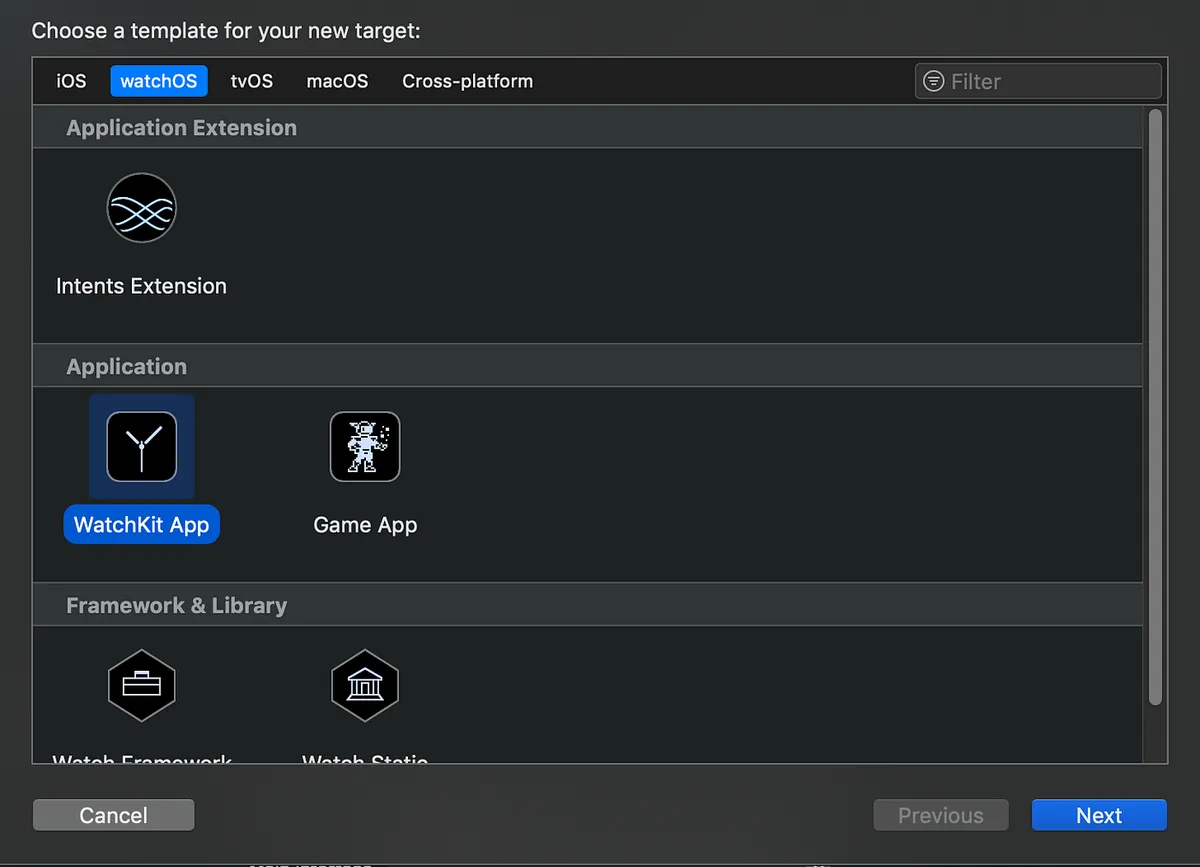
File -> New -> Target -> watchOS -> WatchKit App
*Apple Watch App无法独立安装,一定要依附在 iOS App 之下
新建好之后目录会长这样:
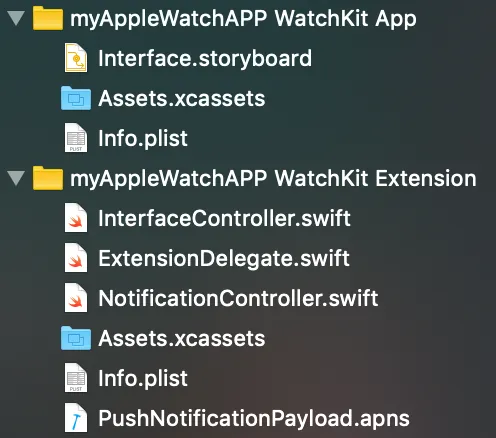
你会发现有两个Target项目,缺一不可:
WatchKit App: 负责存放资源、UI显示 /Interface.storyboard:同 iOS,里面有系统预设建立的视图控制器 /Assets.xcassets:同 iOS,存放用到的资源项目 /info.plist:同 iOS,WatchKit App 相关设定
WatchKit Extension: 负责程式呼叫、逻辑处理( * .swift) /InterfaceController.swift:预设的视图控制器程式 /ExtensionDelegate.swift:类似Swift的AppDelegate,Apple Watch App 启动入口 /NotificationController.swift:用于处理Apple Watch App上的推播显示 /Assets.xcassets:这里不使用,我统一放在WatchKit App的Assets.xcassets下 /info.plist:同 iOS,WatchKit Extension 相关设定 /PushNotificationPayload.apns:推播资料,可用在模拟器上测试推播功能
细节会在后面做介绍,先大概了解一下目录及文件内容功能即可。
视图控制器:
在AppleWatch中视图控制器不叫ViewController而是InterfaceController ,你可以在WatchKit App/Interface.storyboard中找到Interface Controller Scence,控制它的程式就放在WatchKit Extension/InterfaceController.swift中(同iOS概念)
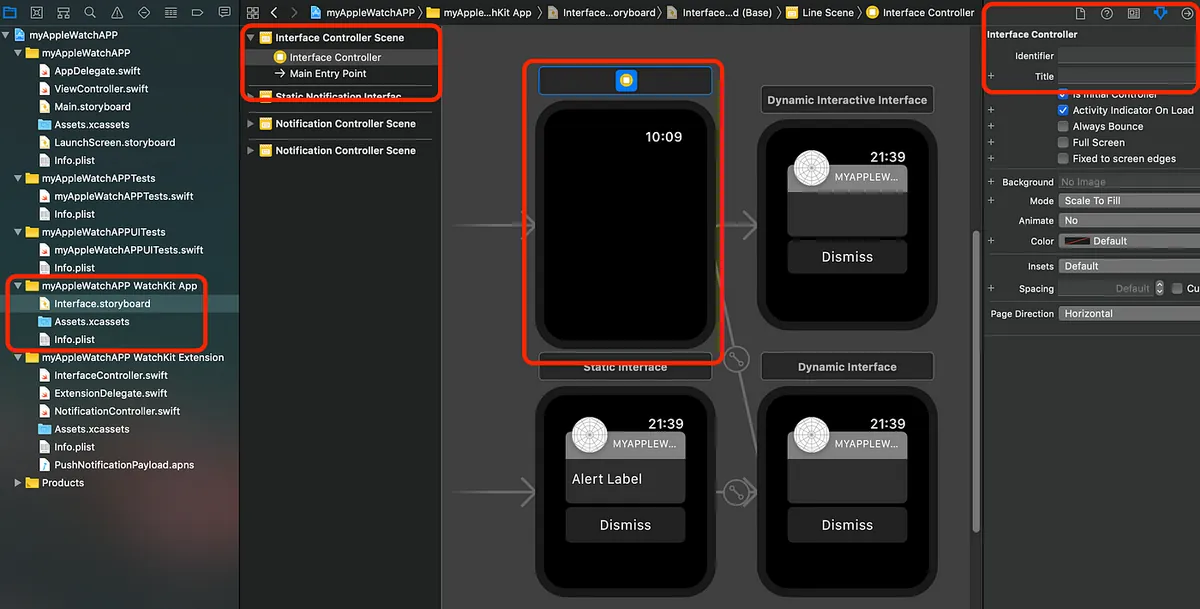
Scene预设会和Notification Controller Scene挤在一起 (我会把它拉上面一点分开)
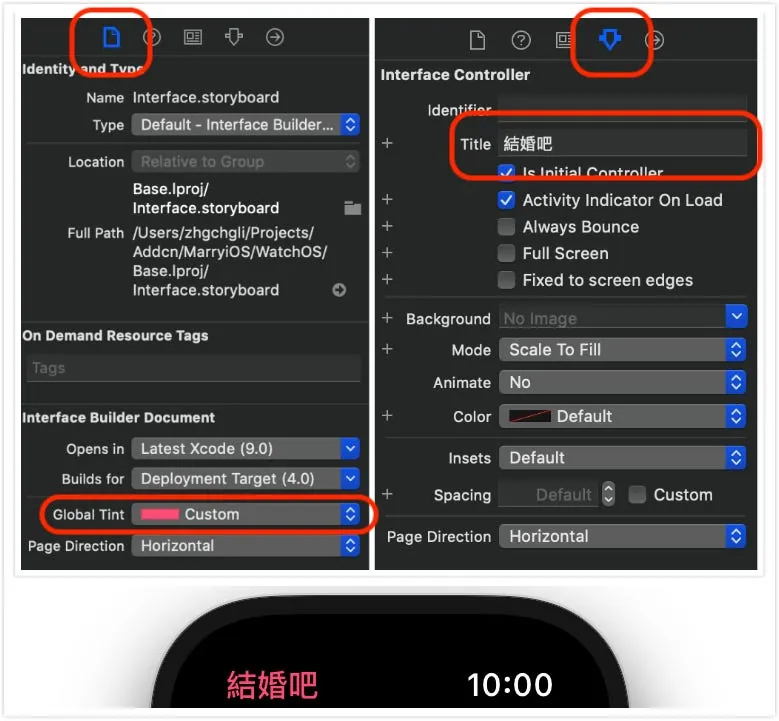
可在右方设定InterfaceController的标题显示文字.
标题颜色部分吃的是Interface Builder Document/Global hint设定,整个App的风格颜色会是统一的.
元件库:
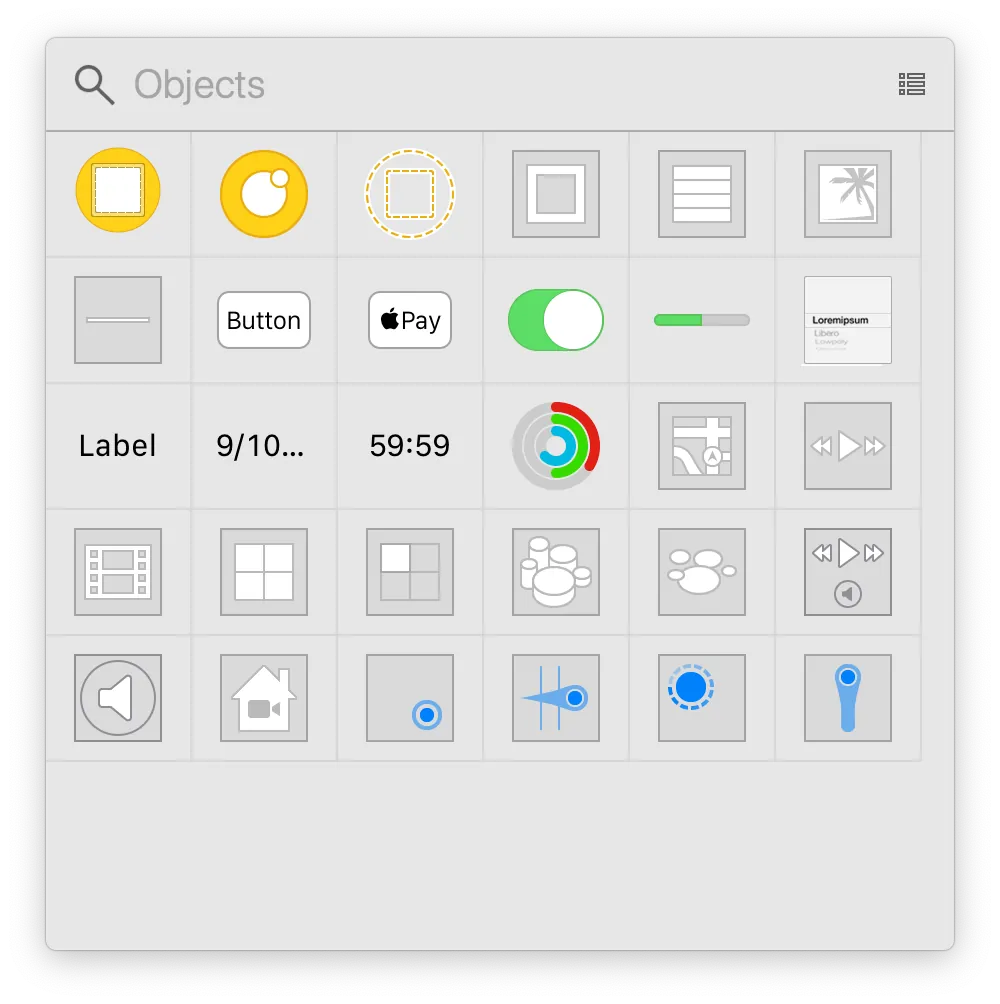
没有太多复杂的元件,元件功能也都简单明了
UI 排版:
万丈高楼从View起,排版的部分没有 UIKit(iOS) 中的Auto Layout、约束、图层,全都使用参数进行排版设置,更简单有力(排起来有点像 UIKit 中的 UIStackView)
一切排版由Group组成,类似UIKit中的 UIStackView 但能设置更多排版参数
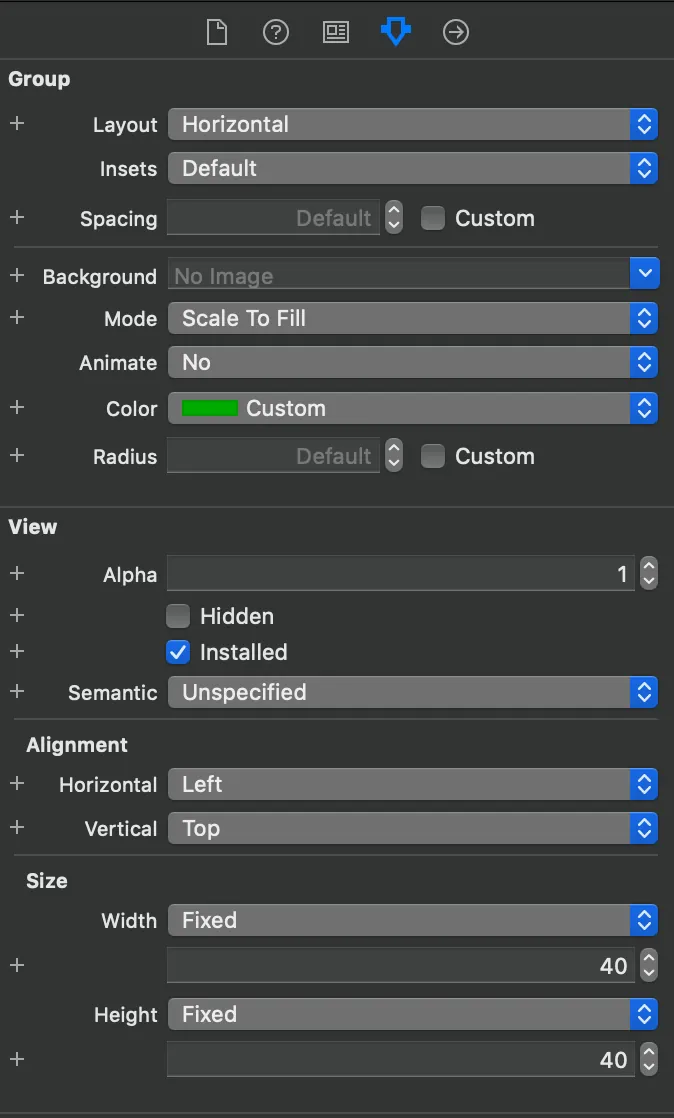
Group的参数设置
Layout:设置被包在里面的子View排版方式(水平、垂直、图层堆叠)
Insets:设置Group的上下左右间距
Spacing:设置被包在里面的子View之间的间距
Radius:设置Group的圆角,没错!WatchKit自带圆角设置参数
Alignment/Horizontal:设置水平对齐方式(左、中、右)与邻居、外层包覆的View设置会有所连动
Alignment/Vertical:设置垂直对齐方式(上、中、下)与邻居、外层包覆的View设置会有所连动
Size/Width:设置Group的大小,有三种模式可选「Fixed:指定宽度」、「Size To Fit Content:依照内容子View大小决定宽度」、「Relative to Container:参照外层包覆的View大小为宽度(可设%/+ -修正值)」
Size/Height:同Size/Width,此项是设置高度
字型/字体大小设置:
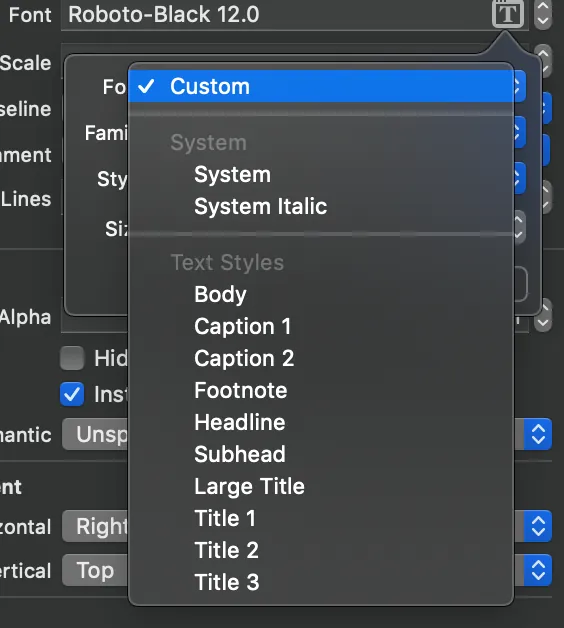
可直接套用系统的Text Styles,或使用Custom(但这边我测试使用Custom无法设定字体大小);所以 我是使用System 自订各显示Label的字体大小
做中学:以Line排版为例
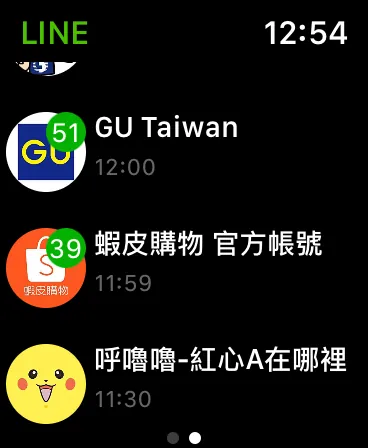
排版部分不像 iOS 那么复杂,所以我直接透过范例示范给大家看,就能直接上手;以 Line 的主页排版为例子:
在WatchKit App/Interface.storyboard中找到Interface Controller Scence:
1.整个页面,相当于 iOS App 开发中会使用到的 UITableView,在Apple Watch App 中简化了操作,名字也改叫做「WKInterfaceTable」 首先就先拉一个Table到Interface Controller Scence中
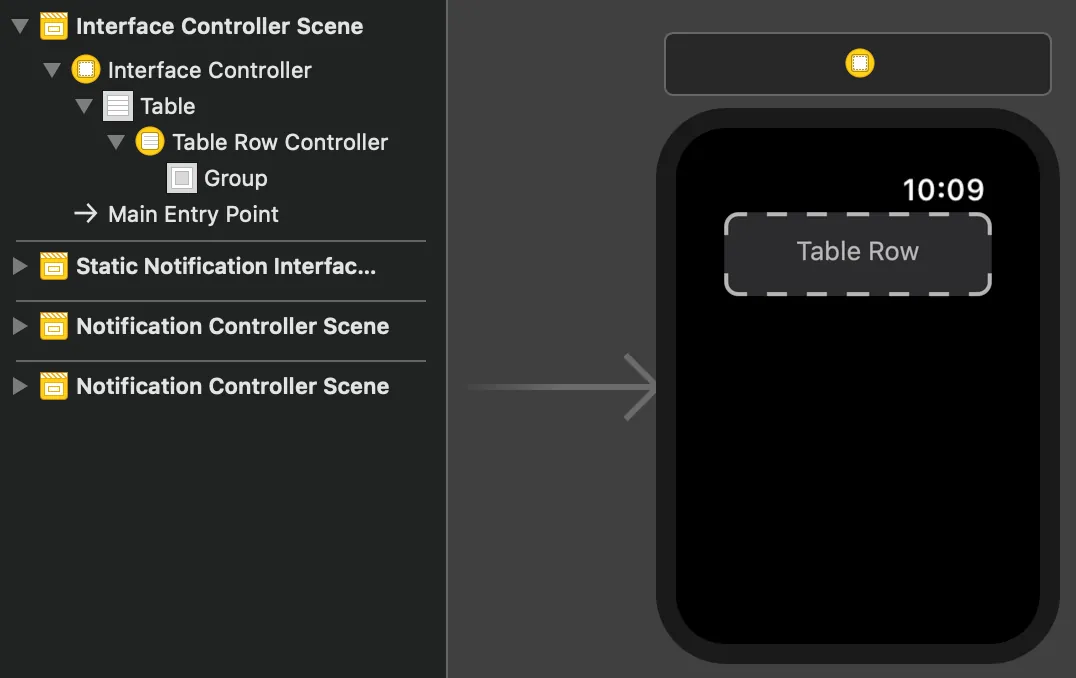
同UIKit UITableView,有Table本体、有Cell(Apple Watch中叫做Row);使用起来简化许多, 你可以直接在此介面上进行Cell的设计排版!
- 分析排版架构,设计Row显示样式:
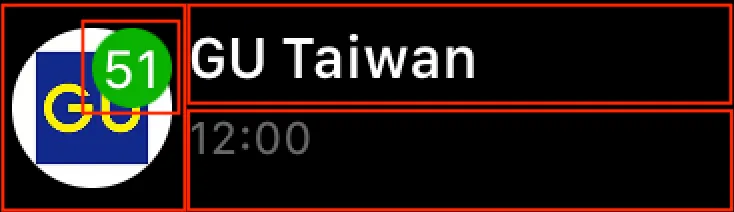
要排出一个左边有圆角满版的Image且堆叠一个Label,右边平均分配上下两个区块,上方放Label,下方也放Label的区块
2–1: 拉出左右两区块的架构
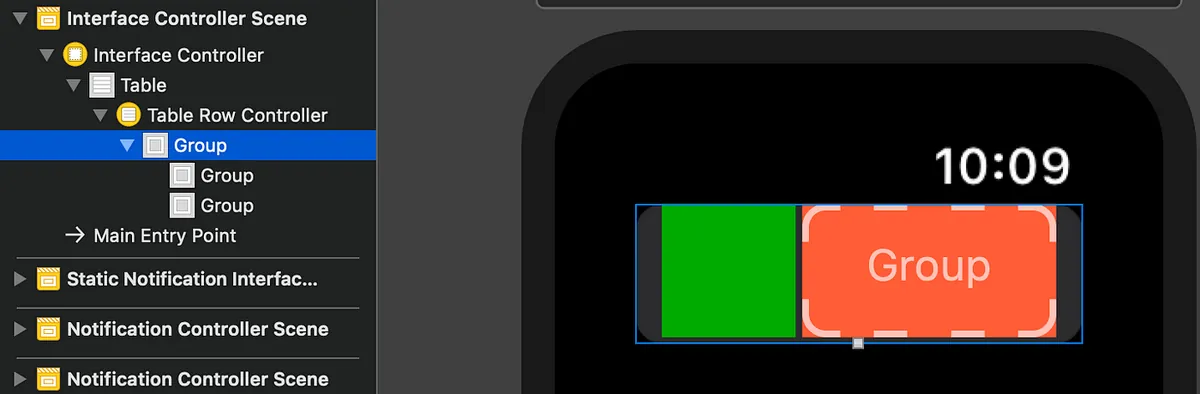
拉两个Group到Group中,并对Size参数分别设定:
左边绿色部分:

Layout设定Overlap,里面子View要做未读讯息Label的图层堆叠显示
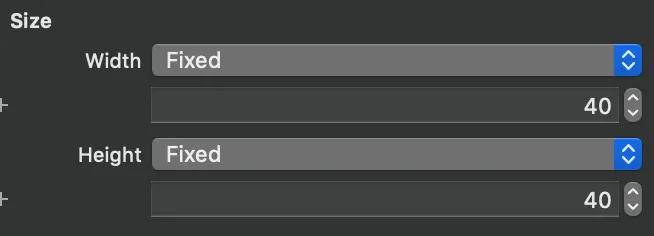
设固定长宽40的正方形
右边红色部分:

Layout设定Vertical,里面子View要做上下两个显示
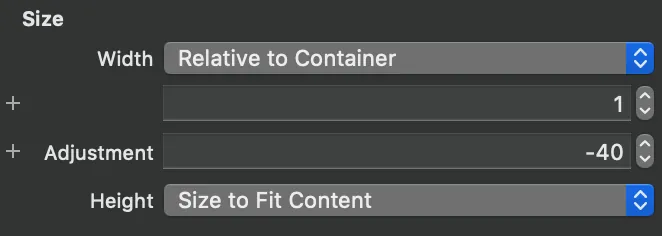
宽度设定参照外层,比例100%,扣掉左边绿色部分40
左右容器内排版:
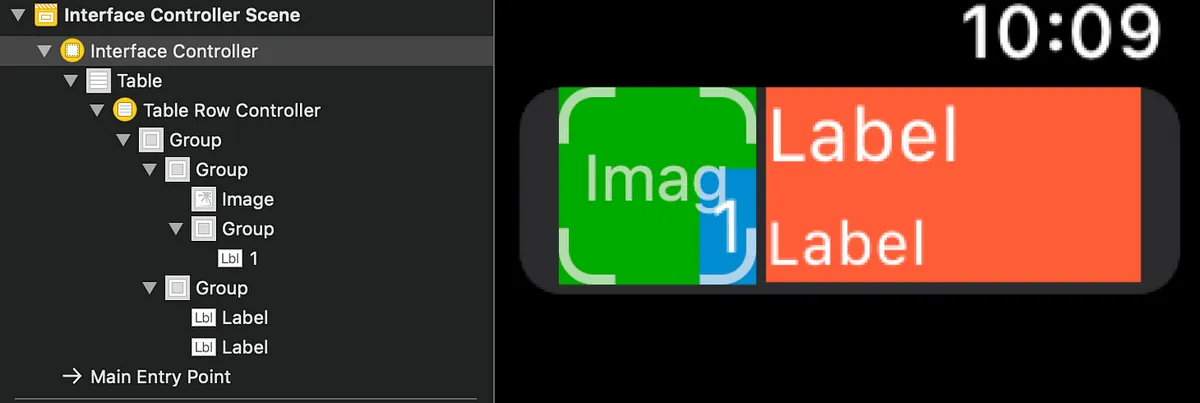
左边部分:拉入一个Image,再拉入一个包覆Lable的Group对齐设右下(Group设底色再设间距及圆角)
右边部分:拉入两个Label,一个对齐设左上,一个对齐设左下即可
为Row命名(同UIKit UITableView为Cell设定identifier):
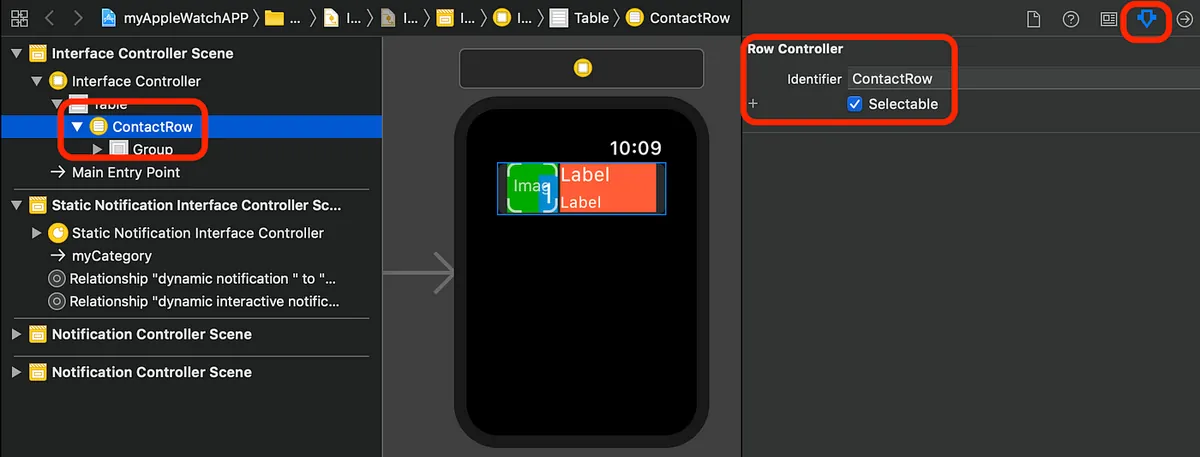
选定Row->Identifier->输入自订名称
Row的呈现样式不只一种呢?
非常简单,只要在拉一个Row放在Table里(实际要显示哪个样式的ROW由程式控制)并输入Identifier命名即可
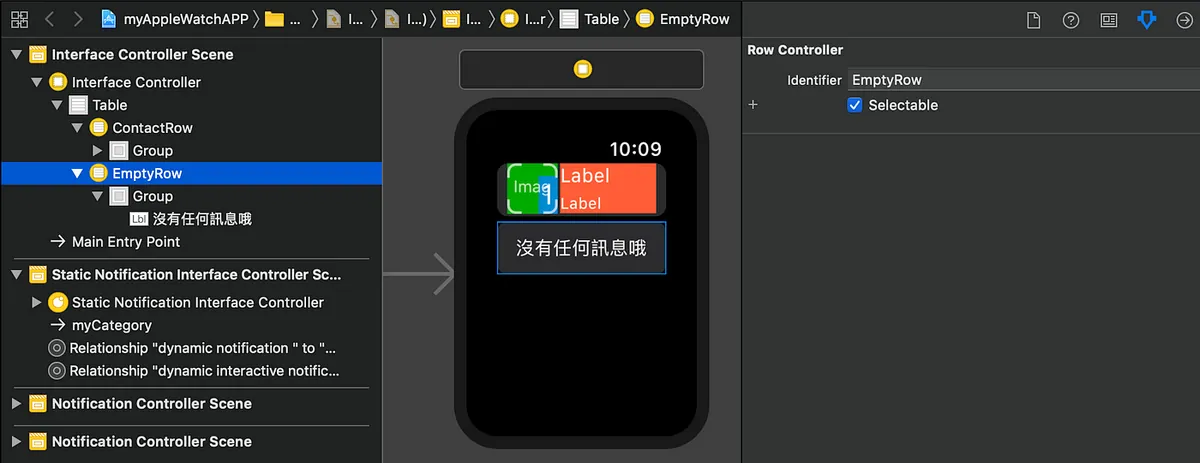
这边我再拉一个Row用于呈现无资料时的提示
排版相关资讯
watchKit的hidden不会占位,可拿来做交互应用(有登入才显示Table;没登入显示提示Label)
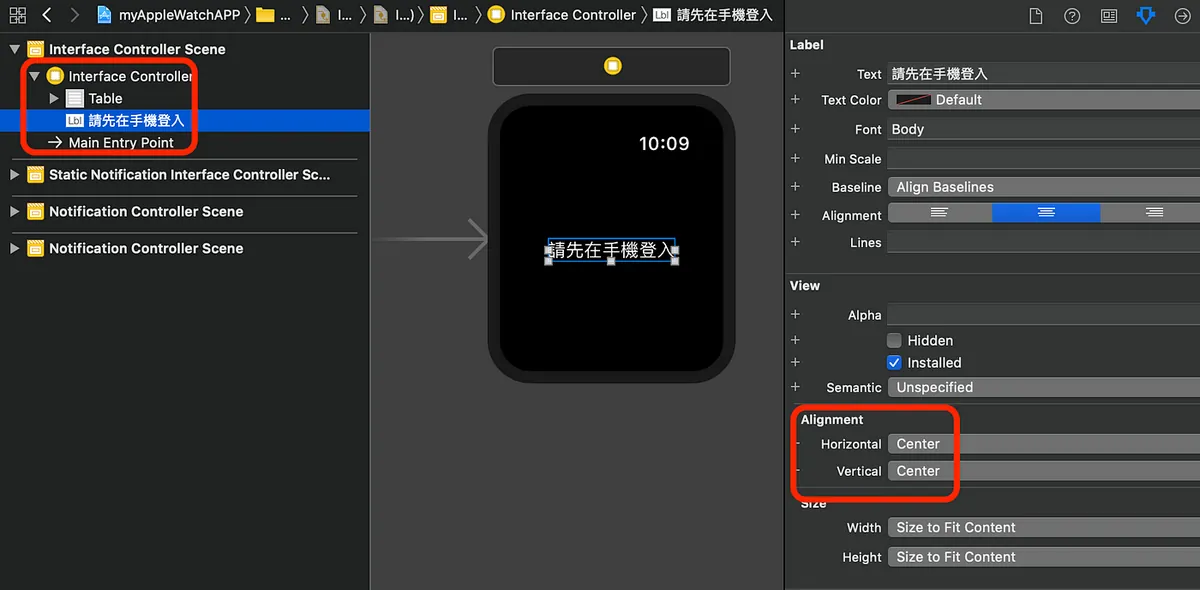
排版到此告一段落,可依照个人设计做修改;上手容易,多排个几次、玩玩对齐参数,就能熟悉!
程式控制部分:
接续Row,我们需要建立一个Class对Row进行参照操作:
1
2
class ContactRow:NSObject {
}
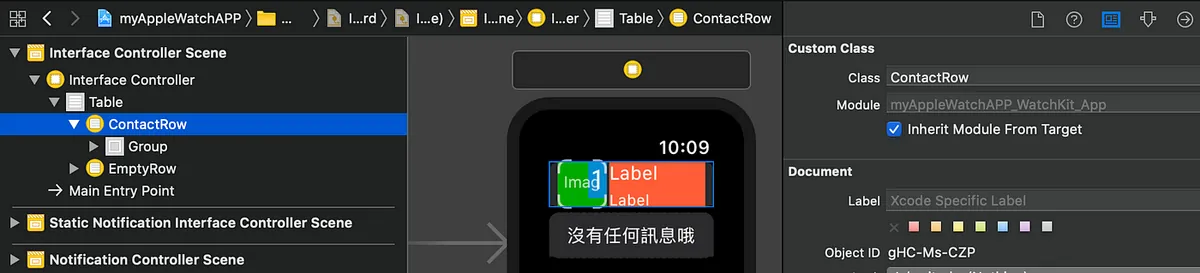
1
2
3
4
5
6
7
8
class ContactRow:NSObject {
    var id:String?
    @IBOutlet var unReadGroup: WKInterfaceGroup!
    @IBOutlet var unReadLabel: WKInterfaceLabel!
    @IBOutlet weak var imageView: WKInterfaceImage!
    @IBOutlet weak var nameLabel: WKInterfaceLabel!
    @IBOutlet weak var timeLabel: WKInterfaceLabel!
}
拉outlet、储存变数
Table部分ㄧ样拉Outlet到Controller中:
1
2
3
4
5
6
7
8
9
10
11
12
13
14
15
16
17
18
19
20
21
22
23
24
25
26
27
28
29
30
31
32
33
34
35
36
37
38
39
40
41
42
43
44
45
46
47
48
49
50
51
52
53
class InterfaceController: WKInterfaceController {

    @IBOutlet weak var Table: WKInterfaceTable!
    override func awake(withContext context: Any?) {
        super.awake(withContext: context)

        // Configure interface objects here.
    }

    override func willActivate() {
        // This method is called when watch view controller is about to be visible to user
        super.willActivate()
    }

    struct ContactStruct {
        var name:String
        var image:String
        var time:String
    }

    func loadData() {
        //Get API Call Back...
        //postData {
        let data:[ContactStruct] = [] //api returned data...

        self.Table.setNumberOfRows(data.count, withRowType: "ContactRow")
        //如果你有多种ROW需要呈现则用:
            //self.Table.setRowTypes(["ContactRow","ContactRow2","ContactRow3"])
        //
        for item in data.enumerated() {
            if let row = self.Table.rowController(at: item.offset) as? ContactRow {
                row.nameLabel.setText(item.element.name)
                //assign value to lable/image......
            }
        }

        //}
    }

    override func didDeactivate() {
        // This method is called when watch view controller is no longer visible
        super.didDeactivate()
        loadData()
    }

    //处理Row点选时:
    override func table(_ table: WKInterfaceTable, didSelectRowAt rowIndex: Int) {
        guard let row = table.rowController(at: rowIndex) as? ContactRow,let id = row.id else {
            return
        }
        self.pushController(withName: "showDetail", context: id)
    }
}
Table的操作简化许多没有delegate/datasource,设定资料方式只要呼叫setNumberOfRows/setRowTypes指定Row数量和形态,再使用rowController(at:) 设定每列的资料内容即可!
Table的Row选择事件也只需 override func table( _ table: WKInterfaceTable, didSelectRowAt rowIndex: Int) 即可操作!(Table也只有这个事件)
如何跳页?
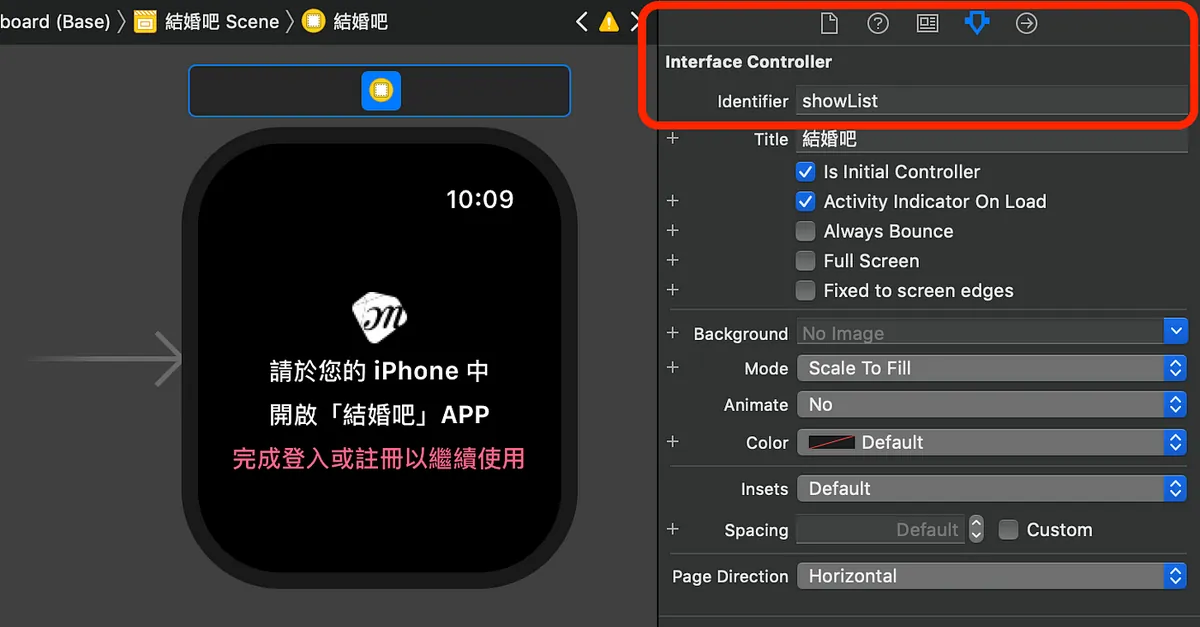
首先为Interface Controller设定Identifier
watchKit有两种跳页模式:
1.类似iOS UIKit push self.pushController(withName: Interface Controller Identifier , context: Any? )
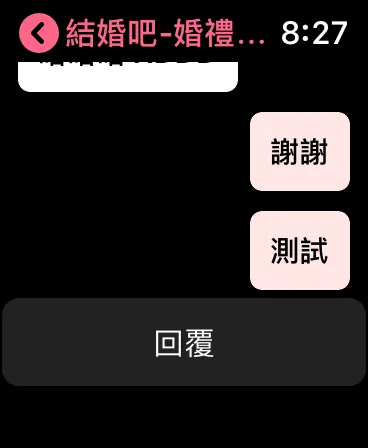
push方式可左上返回
返回上一页同iOS UIKit:self.pop( )
返回根页面:self.popToRootController( )
开新页面:self.presentController( )
- 页签显示方式 WKInterfaceController.reloadRootControllers(withNames: [ Interface Controller Identifier ], contexts: [ Any? ] )
亦或是在Storyboard上,在第一页的Interface Controller上按Control+Click拖曳到第二页选择「next page」也可
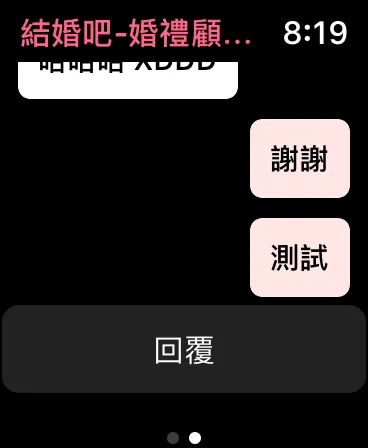
页签显示方式可以左右切换页面
两种跳页方式不能混用.
跳页参数?
不像iOS需要使用自订delegate或segue方式传递参数,watchKit跳页带参数方式就是将参数放入上方方法中的 contexts 中即可.
接收参数在 InterfaceController 的 awake(withContext context: Any?)
例如我在A页面要跳到B页面并带入id:Int时:
A 页面:
1
self.pushController(withName: "showDetail", context: 100)
B 页面:
1
2
3
4
5
6
7
8
9
override func awake(withContext context: Any?) {
        super.awake(withContext: context)
        guard let id = context as? Int else {
           print("参数错误!")
           self.popToRootController()
           return
        }
        // Configure interface objects here.
}
程式控制元件部分
相比iOS UIKit一样简化许多,有开发过iOS的应该上手很快! 例如label变成setText( ) p.s. 而且居然没有getText的方法,只能extension变数或放在外部变数储存
与iPhone之间同步/资料传递
如果有开发过iOS 相关 Extension 的话;下意识一定是用App Groups共享UserDefaults的方式,当初我也兴冲冲的这样做,然后卡了好久发现资料一直过不去,直到上网一查才发现,watchOS>2之后就不再支援此方法了….
要使用新的WatchConnectivity方式让手机跟手表之间进行通讯(类似socket概念),iOS手机及手表watchOS两端都需要实做,我们写成singleton模式如下:
手机端:
1
2
3
4
5
6
7
8
9
10
11
12
13
14
15
16
17
18
19
20
21
22
23
24
25
26
27
28
29
30
31
32
33
34
35
36
37
38
39
40
41
42
43
44
45
46
47
48
49
50
51
52
53
54
55
56
57
58
59
60
61
62
63
64
65
66
67
68
69
70
71
import WatchConnectivity

class WatchSessionManager: NSObject, WCSessionDelegate {
    @available(iOS 9.3, *)
    func session(_ session: WCSession, activationDidCompleteWith activationState: WCSessionActivationState, error: Error?) {
        //手机端session启用完成
    }

    func session(_ session: WCSession, didReceiveUserInfo userInfo: [String : Any] = [:]) {
        //手机端接受到手表传回的UserInfo
    }

    func session(_ session: WCSession, didReceiveMessage message: [String : Any], replyHandler: @escaping ([String : Any]) -> Void) {
        //手机端接受到手表回传的Message
    }

    //另外还有didReceiveMessageData,didReceiveFile同样都是处理收到手表回传的资料
    //看你的资料传递接收需求决定要用哪个

    func sendUserInfo() {
        guard let validSession = self.validSession,validSession.isReachable else {
            return
        }

        if userDefaultsTransfer?.isTransferring == true {
            userDefaultsTransfer?.cancel()
        }

        var list:[String:Any] = [:]
        //将UserDefaults放入list....

        self.userDefaultsTransfer = validSession.transferUserInfo(list)
    }

    func sessionReachabilityDidChange(_ session: WCSession) {
        //与手表APP连接状态改变时(手表开启APP时/手表关闭APP时)
        sendUserInfo()
        //我是当状态改变,如为手表开启APP时就同步一次UserDefaults
    }

    func session(_ session: WCSession, didFinish userInfoTransfer: WCSessionUserInfoTransfer, error: Error?) {
        //完成同步UserDefaults(transferUserInfo)
    }

    func sessionDidBecomeInactive(_ session: WCSession) {

    }

    func sessionDidDeactivate(_ session: WCSession) {

    }

    static let sharedManager = WatchSessionManager()
    private override init() {
        super.init()
    }

    private let session: WCSession? = WCSession.isSupported() ? WCSession.default : nil
    private var validSession: WCSession? {
        if let session = session, session.isPaired && session.isWatchAppInstalled {
            return session
        }
        //回传有效且连接中且手表APP开启中的session
        return nil
    }

    func startSession() {
        session?.delegate = self
        session?.activate()
    }
}
WatchConnectivity 手机端的 Code
并在iOS/AppDelegate.swift的application( _ application: UIApplication, didFinishLaunchingWithOptions launchOptions: [UIApplicationLaunchOptionsKey: Any]?)中加入WatchSessionManager.sharedManager.startSession( ) 以在启动手机APP后连接上session
手表端:
1
2
3
4
5
6
7
8
9
10
11
12
13
14
15
16
17
18
19
20
21
22
23
24
25
26
27
28
29
30
31
32
33
34
35
36
37
import WatchConnectivity

class WatchSessionManager: NSObject, WCSessionDelegate {
    func session(_ session: WCSession, activationDidCompleteWith activationState: WCSessionActivationState, error: Error?) {
    }

    func sessionReachabilityDidChange(_ session: WCSession) {
        guard session.isReachable else {
            return
        }

    }

    func session(_ session: WCSession, didFinish userInfoTransfer: WCSessionUserInfoTransfer, error: Error?) {

    }

    func session(_ session: WCSession, didReceiveUserInfo userInfo: [String : Any] = [:]) {
        DispatchQueue.main.async {
            //UserDefaults:
            //print(userInfo)
        }
    }

    static let sharedManager = WatchSessionManager()
    private override init() {
        super.init()
    }

    private let session: WCSession? = WCSession.isSupported() ? WCSession.default : nil

    func startSession() {
        session?.delegate = self
        session?.activate()
    }
}
WatchConnectivity 手表端的 Code
并在WatchOS Extension/ExtensionDelegate.swift中的applicationDidFinishLaunching( ) 加入 WatchSessionManager.sharedManager.startSession( ) 以在启动手表APP后连接上session
WatchConnectivity 资料传递方式
传资料用:sendMessage,sendMessageData,transferUserInfo,transferFile 收资料用:didReceiveMessageData,didReceive,didReceiveMessage 两端传接收方法都ㄧ样

可以看到手表传资料到手机都通,但手机传资料到手表仅限手表APP开启中
watchOS推播处理
专案目录底下的PushNotificationPayload.apns这时就派上用场了,这是用来在模拟器上测试推播之用,在模拟器上部署Watch App target,安装完启动App就会收到一则以这个档案内容的推播,让开发者更容易测试推播功能.
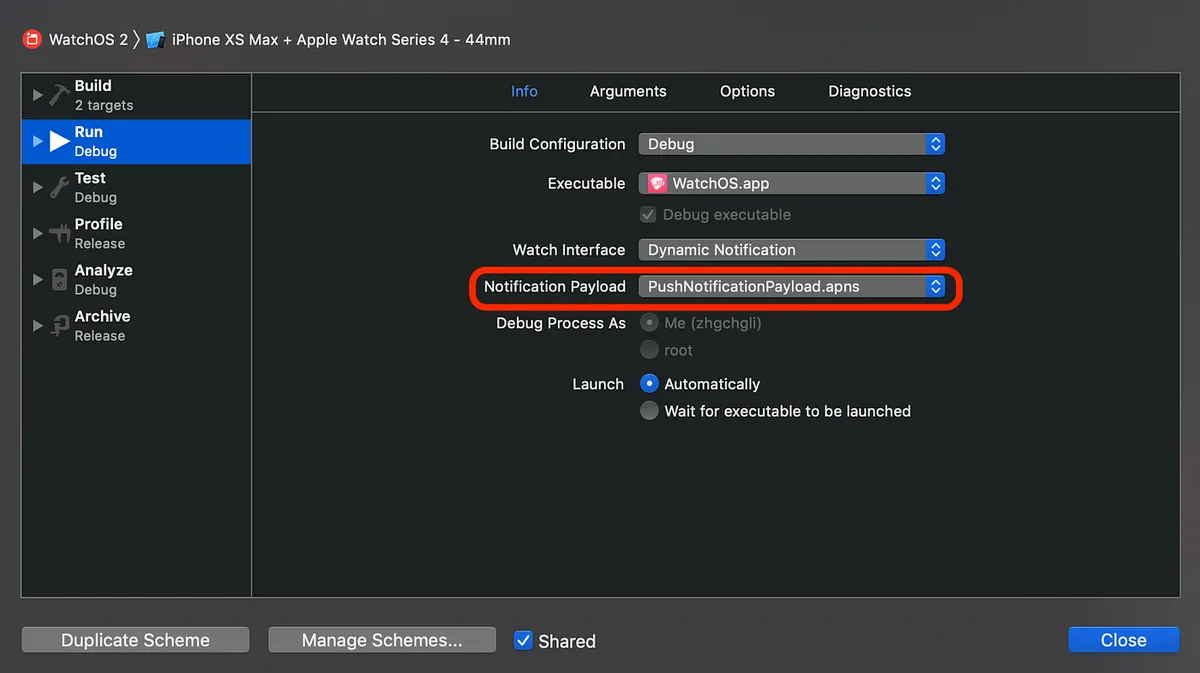
如要修改/启用/停用 PushNotificationPayload.apns,请选择Target后Edit Scheme
watchOS 推播处理:
同iOS我们实做UNUserNotificationCenterDelegate,在watchOS中我们也实作一样的方法,在watchOS Extension/ExtensionDelegate.swift中
1
2
3
4
5
6
7
8
9
10
11
12
13
14
15
16
17
18
19
20
21
22
23
24
25
26
27
28
29
30
31
32
33
34
35
36
37
38
39
40
41
import WatchKit
import UserNotifications
import WatchConnectivity

class ExtensionDelegate: NSObject, WKExtensionDelegate, UNUserNotificationCenterDelegate {

    func applicationDidFinishLaunching() {

        WatchSessionManager.sharedManager.startSession() //前面提到的WatchConnectivity连线

        UNUserNotificationCenter.current().delegate = self //设定UNUserNotificationCenter delegate
        // Perform any final initialization of your application.
    }

    func userNotificationCenter(_ center: UNUserNotificationCenter, willPresent notification: UNNotification, withCompletionHandler completionHandler: @escaping (UNNotificationPresentationOptions) -> Void) {
        completionHandler([.sound, .alert])
        //同iOS,此做法可让推播在APP前景时依然会显示
    }

    func userNotificationCenter(_ center: UNUserNotificationCenter, didReceive response: UNNotificationResponse, withCompletionHandler completionHandler: @escaping () -> Void) {
        //点击推播时
        guard let info = response.notification.request.content.userInfo["aps"] as? NSDictionary,let alert = info["alert"] as? Dictionary<String,String>,let data = info["data"] as? Dictionary<String,String> else {
            completionHandler()
            return
        }

        //response.actionIdentifier可得点击事件Identifier
        //预设点击事件:UNNotificationDefaultActionIdentifier

        if alert["type"] == "new_ask") {
            WKExtension.shared().rootInterfaceController?.pushController(withName: "showDetail", context: 100)
            //取得目前root interface controller 并 push
        } else {
           //其他处理....
           //WKExtension.shared().rootInterfaceController?.presentController(withName: "", context: nil)

        }

        completionHandler()
    }
}
ExtensionDelegate.swift
watchOS 推播显示,分成三种:
- static: 预设推播显示方式
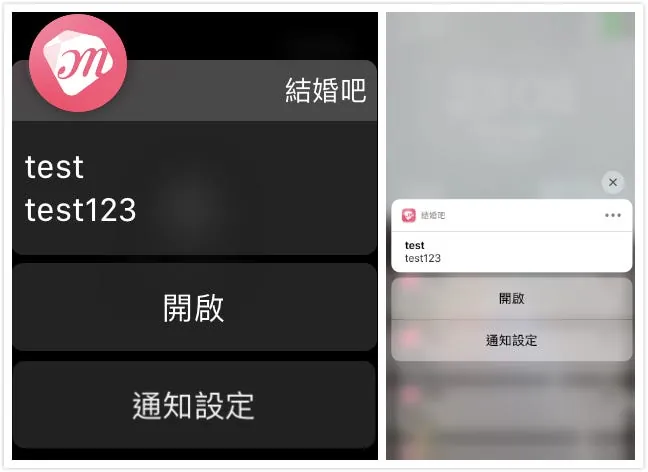
会同手机推播,这边手机端iOS有实做UNUserNotificationCenter.setNotificationCategories在通知下方增加按钮;Apple Watch预设亦然会出现
dynamic:动态处理推播显示样式(重组内容、显示图片)
interactive:watchOS ≥ 5 后支援,在dynamic的基础下再增加支援按钮
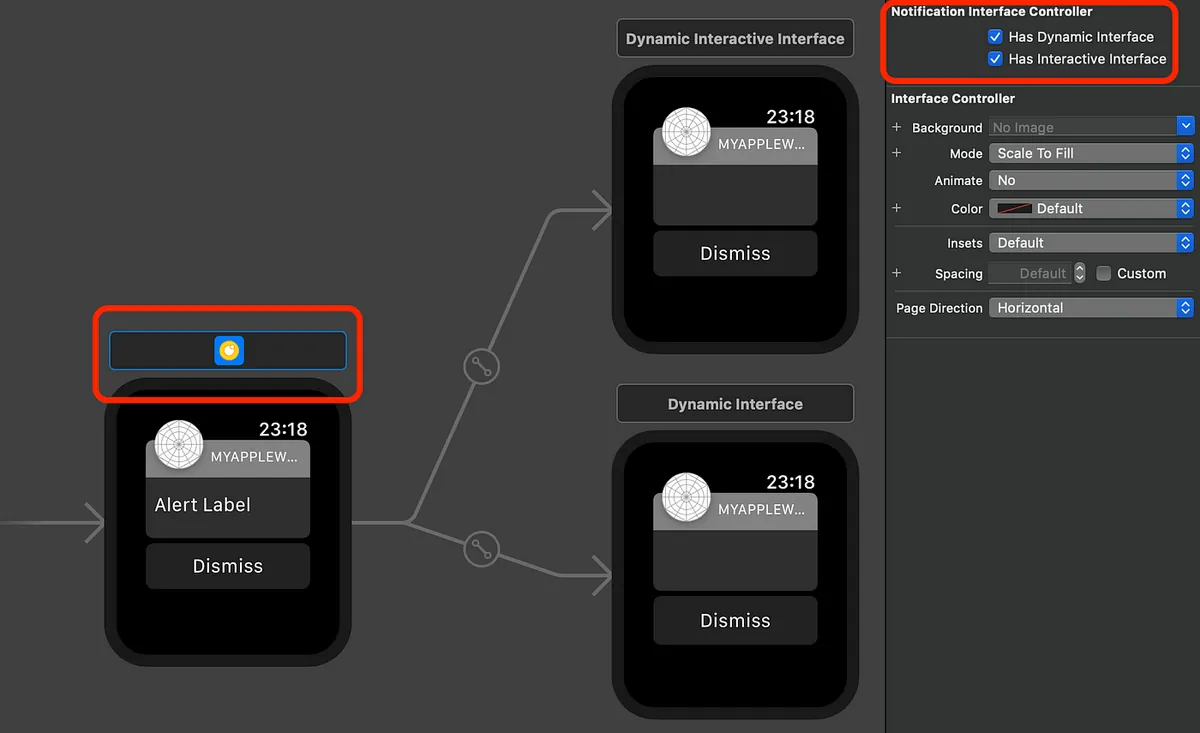
可在Interface.storyboard中的Static Notification Interface Controller Scene设定推播处理方式
static没什么好说的,就是走预设的显示方式,这边先介绍dynamic,勾选「Has Dynamic Interface」后会出现「Dynamic Interface」可在此视图设计你自订的推播呈现方式(不能使用Button):
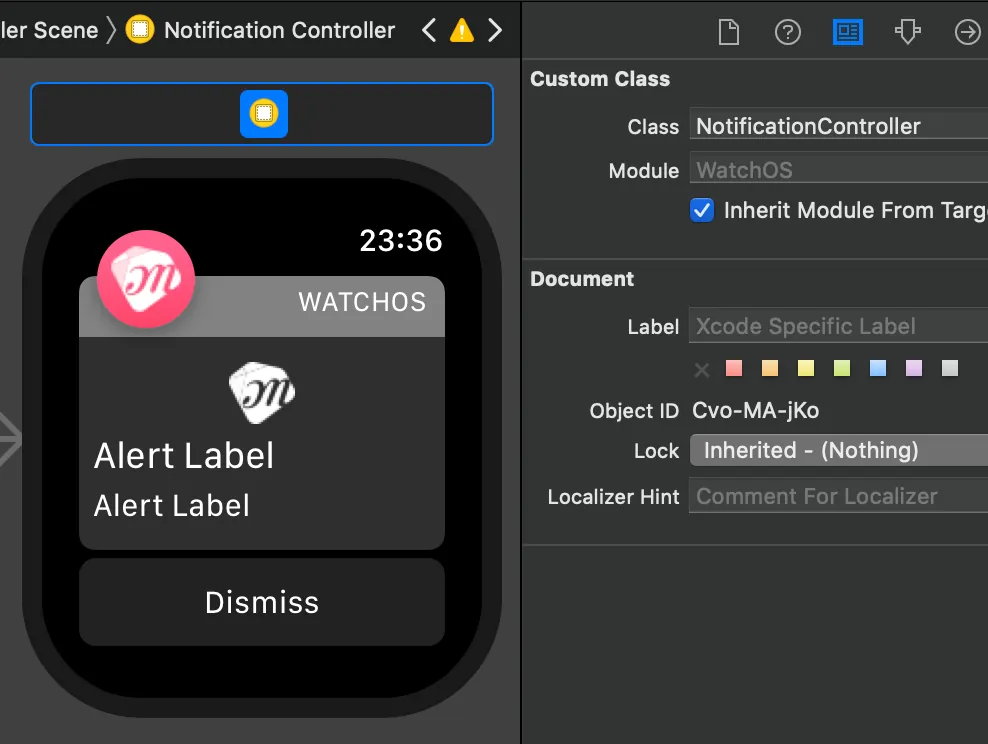
我的自订推播呈现设计
1
2
3
4
5
6
7
8
9
10
11
12
13
14
15
16
17
18
19
20
21
22
23
24
25
26
27
28
29
30
31
32
33
34
35
36
37
38
39
40
41
42
43
44
45
46
47
48
49
50
51
52
53
54
55
56
57
58
59
import WatchKit
import Foundation
import UserNotifications

class NotificationController: WKUserNotificationInterfaceController {

    @IBOutlet var imageView: WKInterfaceImage!
    @IBOutlet var titleLabel: WKInterfaceLabel!
    @IBOutlet var contentLabel: WKInterfaceLabel!

    override init() {
        // Initialize variables here.
        super.init()
        self.setTitle("结婚吧") //设定右上方标题
        // Configure interface objects here.
    }

    override func willActivate() {
        // This method is called when watch view controller is about to be visible to user
        super.willActivate()
    }

    override func didDeactivate() {
        // This method is called when watch view controller is no longer visible
        super.didDeactivate()
    }

    override func didReceive(_ notification: UNNotification) {

        if #available(watchOSApplicationExtension 5.0, *) {
            self.notificationActions = []
            //清除iOS实做的UNUserNotificationCenter.setNotificationCategories在通知下方增加的按钮
        }

        guard let info = notification.request.content.userInfo["aps"] as? NSDictionary,let alert = info["alert"] as? Dictionary<String,String> else {
            return
        }
        //推播资讯

        self.titleLabel.setText(alert["title"])
        self.contentLabel.setText(alert["body"])

        if #available(watchOSApplicationExtension 5.0, *) {
            if alert["type"] == "new_msg" {
              //如果是新讯息推播则在通知下方增加回复按钮
              self.notificationActions = [UNNotificationAction(identifier: "replyAction",title: "回复", options: [.foreground])]
            } else {
              //其他则增加查看按钮
              self.notificationActions = [UNNotificationAction(identifier: "openAction",title: "查看", options: [.foreground])]
            }
        }


        // This method is called when a notification needs to be presented.
        // Implement it if you use a dynamic notification interface.
        // Populate your dynamic notification interface as quickly as possible.

    }
}
程式部分,ㄧ样拉outlet到controller并实做功能
再来讲到interactive,同dynamic,只是能多加Button,能跟dynamic设同个Class控制程式;interactive我没有使用,因为我的按钮是用程式self.notificationActions加上去的,差异如下:
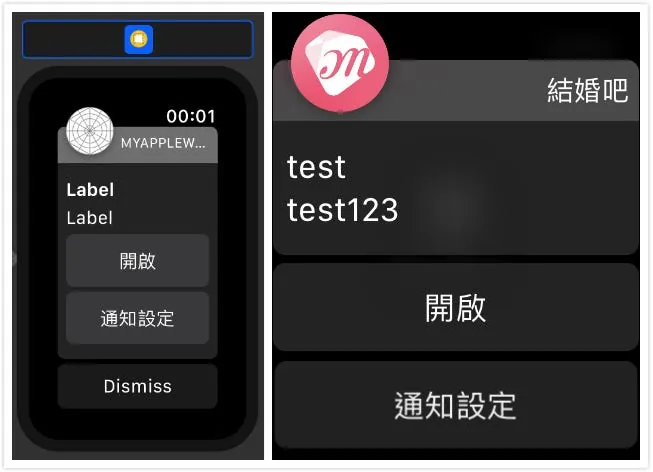
左使用interactive,右使用self.notificationActions
两个做法都需watchOS ≥ 5 支援.
使用self.notificationActions增加按钮则按钮事件处理由ExtensionDelegate中的 userNotificationCenter(_ center: UNUserNotificationCenter, didReceive response: UNNotificationResponse, withCompletionHandler completionHandler: @escaping () -> Void) 处理,并以identifier识别动作
选单功能?
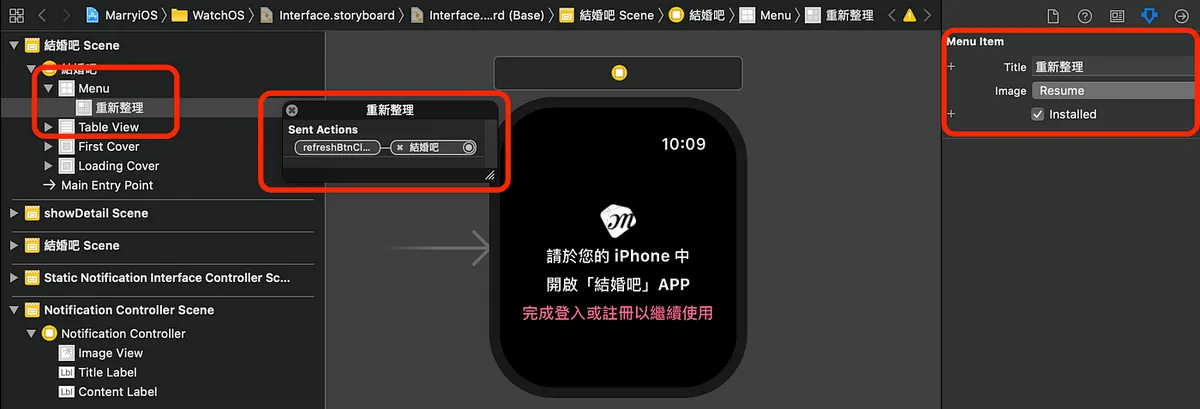
在元件库中拉入Menu,再拉入选单项目Menu Item,再拉IBAction到程式控制
在页面重压就会出现:
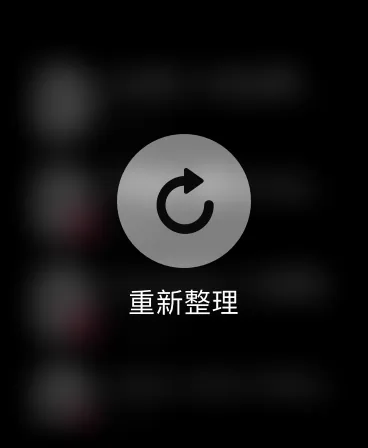
内容输入?
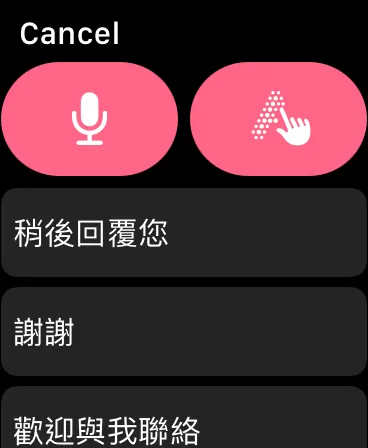
使用内建的presentTextInputController方法即可!
1
2
3
4
5
6
7
8
9
10
11
12
13
14
15
16
17
18
19
20
21
22
23
24
25
26
27
28
29
@IBAction func replyBtnClick() {
    guard let target = target else {
        return
    }

    self.presentTextInputController(withSuggestions: ["稍后回复您","谢谢","欢迎与我联络","好的","OK!"], allowedInputMode: WKTextInputMode.plain) { (results) in

        guard let results = results else {
            return
        }
        //有输入值时

        let txts = results.filter({ (txt) -> Bool in
            if let txt = txt as? String,txt != "" {
                return true
            } else {
                return false
            }
        }).map({ (txt) -> String in
            return txt as? String ?? ""
        })
        //预处理输入


        txts.forEach({ (txt) in
            print(txt)
        })
    }
}
总结
谢谢你看到这!辛苦了!
到这里文章已告一段落,大略提了一下UI排版、程式、推播、介面应用部分,有开发过iOS的上手真的很快,几乎差不多而且许多方法都做了简化使用起来更简洁,但能做的事确实也变少了(像是目前还不知道怎么针对Table做载入更多);目前能做的事确实很少,希望官方在未来能开放更多API给开发者使用❤️❤️❤️
MurMur:
{:target="_blank"}](/assets/e85d77b05061/1*-J9qZ846ZysJEhMTSZeE3w.webp)
Apple Watch App Target 部署到手表真的有够慢 — Narcos
有任何问题及指教欢迎 与我联络 。

本文首次发表于 Medium (点击查看原始版本),由 ZMediumToMarkdown 提供自动转换与同步技术。