iOS UITextView 文绕图编辑器 (Swift)
文
Click here to view the English version of this article.
點擊這裡查看本文章正體中文版本。
基于 SEO 考量,本文标题与描述经 AI 调整,原始版本请参考内文。
文章目录
iOS UITextView 文绕图编辑器 (Swift)
实战路线
目标功能:
APP上有一个让使用者能发表文章的讨论区功能,发表文章功能介面需要能输入文字、插入多张图片、支援文绕图穿插.
功能需求:
能输入多行文字
能在行中穿插图片
能上传多张图片
能随意移除插入的图片
图片上传效果/失败处理
能将输入内容转译成可传递文本 EX: BBCODE
先上个成品效果图:
{:target="_blank"}](/assets/e37d66ea1146/1*Sh0XaryqYnqVGV0wJ_dDHA.gif)
开始:
第一章
什么?你说第一章?不就用UITextView就能做到编辑器功能,哪来还需要分到「章节」;是的,我一开始的反应也是如此,直到我开始做才发现事情没有那么简单,其中苦恼了我两个星期、翻片国内外各种资料最后才找到解法,实作的心路历程就让我娓娓道来….
如果想直接知道最终解法,请直接跳到最后一章(往下滚滚滚滚滚).
一开始
文字编辑器理所当然是使用UITextView元件,看了一下文件UITextView attributedText 自带 NSTextAttachment物件 可以附加图片实做出文绕图效果,程式码也很简单:
1
2
3
let imageAttachment = NSTextAttachment()
imageAttachment.image = UIImage(named: "example")
self.contentTextView.attributedText = NSAttributedString(attachment: imageAttachment)
当初天真的我还很开心想说蛮简单的啊、好方便;问题现在才正要开始:
图片要能是从本地选择&上传:这好解决,图片选择器我使用 TLPhotoPicker 这个套件(支援多图选择/客制化设定/切换相机拍照/Live Photos),具体作法就是 TLPhotoPicker选完图片Callback后将PHAsset转成UIImage塞进去imageAttachment.image并预先在背景上传图片至Server。
图片上传要有效果并能添加互动操作(点击查看原图/点击X能删除):没做出来,找不到NSTextAttachment有什么办法能做到这项需求,不过这功能没有还行反正还是能删除(在图片后按键盘上的「Back」键能删除图片),我们继续…
原始图档案过大,上传慢、插入慢、吃效能:插入及上传前先Resize过,用 Kingfisher 的resizeTo
图片插入在游标停留的位置:这里就要将原本的Code改成如下
1
2
3
4
let range = self.contentTextView.selectedRange.location ?? NSRange(location: 0, length: 0)
let combination = NSMutableAttributedString(attributedString: self.contentTextView.attributedText) //取得当前内容
combination.insert(NSAttributedString(attachment: imageAttachment), at: range)
self.contentTextView.attributedText = combination //回写回去
- 图片上传失败处理:这里要说一下,我实际另外写了一个Class 扩充原始的 NSTextAttachment 目的就是要多塞个属性存识别用的值
1
2
3
class UploadImageNSTextAttachment:NSTextAttachment {
   var uuid:String?
}
上传图片时改成:
1
2
3
let id = UUID().uuidString
let attachment = UploadImageNSTextAttachment()
attachment.uuid = id
有办法辨识NSTextAttachment的对应之后,我们就能针对上传失败的图片,去attributedTextd里做NSTextAttachment搜索,找到他并取代成错误提示图或直接移除
1
2
3
4
5
6
7
8
9
10
11
12
13
14
if let content = self.contentTextView.attributedText {
    content.enumerateAttributes(in: NSMakeRange(0, content.length),  options: NSAttributedString.EnumerationOptions(rawValue: 0)) { (object, range, stop) in
        if object.keys.contains(NSAttributedStringKey.attachment) {
            if let attachment = object[NSAttributedStringKey.attachment] as? UploadImageNSTextAttachment,attachment.uuid == "目标ID" {
                attachment.bounds = CGRect(x: 0, y: 0, width: 30, height: 30)
                attachment.image =  UIImage(named: "IconError")
                let combination = NSMutableAttributedString(attributedString: content)
                combination.replaceCharacters(in: range, with: NSAttributedString(attachment: attachment))
                //如要直接移除可用deleteCharacters(in: range)
                self.contentTextView.attributedText = combination
            }
        }
    }
}
克服上述问题后,程式码大约会长成这样:
1
2
3
4
5
6
7
8
9
10
11
12
13
14
15
16
17
18
19
20
21
22
23
24
25
26
27
28
29
30
31
32
33
34
35
36
37
38
39
40
41
42
43
44
45
46
47
48
49
50
51
52
53
54
55
56
57
58
59
60
61
62
63
64
65
66
67
68
69
70
71
72
73
74
75
76
class UploadImageNSTextAttachment:NSTextAttachment {
    var uuid:String?
}
func dismissPhotoPicker(withTLPHAssets: [TLPHAsset]) {
    //TLPhotoPicker 图片选择器的Callback

    let range = self.contentTextView.selectedRange.location ?? NSRange(location: 0, length: 0)
    //取得游标停留位置,无则从头

    guard withTLPHAssets.count > 0 else {
        return
    }

    DispatchQueue.global().async { in
        //在背景处理
        let orderWithTLPHAssets = withTLPHAssets.sorted(by: { $0.selectedOrder > $1.selectedOrder })
        orderWithTLPHAssets.forEach { (obj) in
            if var image = obj.fullResolutionImage {

                let id = UUID().uuidString

                var maxWidth:CGFloat = 1500
                var size = image.size
                if size.width > maxWidth {
                    size.width = maxWidth
                    size.height = (maxWidth/image.size.width) * size.height
                }
                image = image.resizeTo(scaledToSize: size)
                //缩图

                let attachment = UploadImageNSTextAttachment()
                attachment.bounds = CGRect(x: 0, y: 0, width: size.width, height: size.height)
                attachment.uuid = id

                DispatchQueue.main.async {
                    //切回主执行绪更新UI插入图片
                    let combination = NSMutableAttributedString(attributedString: self.contentTextView.attributedText)
                    attachments.forEach({ (attachment) in
                        combination.insert(NSAttributedString(string: "\n"), at: range)
                        combination.insert(NSAttributedString(attachment: attachment), at: range)
                        combination.insert(NSAttributedString(string: "\n"), at: range)
                    })
                    self.contentTextView.attributedText = combination

                }

                //上传图片至Server
                //Alamofire post or....
                //POST image
                //if failed {
                    if let content = self.contentTextView.attributedText {
                        content.enumerateAttributes(in: NSMakeRange(0, content.length),  options: NSAttributedString.EnumerationOptions(rawValue: 0)) { (object, range, stop) in

                            if object.keys.contains(NSAttributedStringKey.attachment) {
                                if let attachment = object[NSAttributedStringKey.attachment] as? UploadImageNSTextAttachment,attachment.uuid == obj.key {

                                    //REPLACE:
                                    attachment.bounds = CGRect(x: 0, y: 0, width: 30, height: 30)
                                    attachment.image = //ERROR Image
                                    let combination = NSMutableAttributedString(attributedString: content)
                                    combination.replaceCharacters(in: range, with: NSAttributedString(attachment: attachment))
                                    //OR DELETE:
                                    //combination.deleteCharacters(in: range)

                                    self.contentTextView.attributedText = combination
                                }
                            }
                        }
                    }
                //}
                //

            }
        }
    }
}
到此差不多问题都解决了,那是什么苦恼了我两周呢?
答:「记忆体」问题
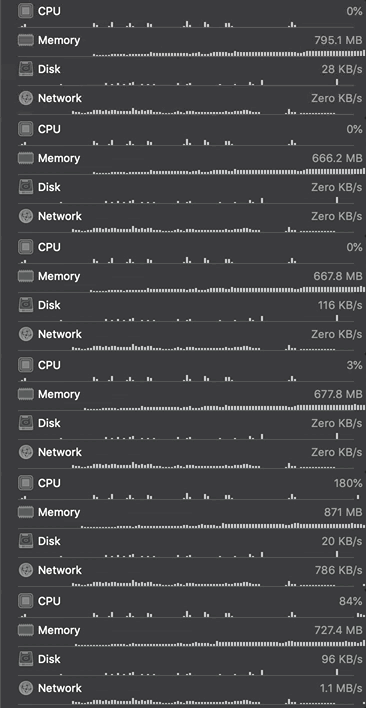
iPhone 6顶不住啊!
以上做法插入超过5张图片,UITextView就会开始卡顿;到一个程度就会因为记忆体负荷不了APP直接闪退
p.s 试过各种压缩/其他储存方式,结果依然
推测原因是,UITextView没有针对图片的NSTextAttachment做Reuse,你所插入的所有图片都Load在记忆体之中不会释放;所以除非是拿来穿插表情符号那种小图😅,不然根本不能拿来做文绕图
第二章
发现记忆体这个「硬伤」后,继续在网路上搜索解决方案,得到以下其他做法:
用WebView嵌套HTML档案( <div contentEditable=”true”></div>)并用JS跟WebView做交互处理
用UITableView结合UITextView,能Reuse
基于TextKit自行扩充UITextView🏆
第一项用WebView嵌套HTML档案的做法;考量到效能跟使用者体验,所以不考虑,有兴趣的朋友可以在Github搜寻相关的解决方案(EX: RichTextDemo )
第二项用UITableView结合UITextView
我实作了大约7成出来,具体大约是每一行都是一个Cell,Cell有两种,一种是UITextView另一种是UIImageView,图片一行文字一行;内容必须用阵列去储存,避免Reuse过程消失
能优秀的Reuse解决记忆体问题,但做到后面还是放弃了,在 控制行尾按Return要能新建一行并跳到该行 和 控制行头按Back键要能跳到上一行(若当前为空行要能删除该行) 这两个部分上吃足苦头,非常难控制
有兴趣的朋友可参考: MMRichTextEdit 」
最终章
走到这里已经耗费了许多时间,开发时程严重拖延;目前最终解法就是用TextKit
这里附上两篇找到的文章给有兴趣研究的朋友:
但有一定的学习门槛,对我这个菜鸟来说太难了,再说时间也已不够,只能漫无目的在Github寻找他山之石借借用用
最终找到 XLYTextKitExtension 这个项目,可以直接引入Code使用
✔ 让 NSTextAttachment 支援自订义UIView 要加什么交互操作都可以
✔ NSTextAttachment 可以Reuse 不会撑爆记忆体
具体实作方式跟 第一章 差不多,就只差在原本是用NSTextAttachment而现在改用XLYTextAttachment
针对要使用的UITextView:
1
contentTextView.setUseXLYLayoutManager()
Tip 1:插入NSTextAttachment的地方改为
1
2
3
4
5
6
7
8
9
let combine = NSMutableAttributedString(attributedString: NSAttributedString(string: ""))
let imageView = UIView() // your custom view
let imageAttachment = XLYTextAttachment { () -> UIView in
    return imageView
}
imageAttachment.id = id
imageAttachment.bounds = CGRect(x: 0, y: 0, width: size.width, height: size.height)
combine.append(NSAttributedString(attachment: imageAttachment))
self.contentTextView.textStorage.insert(combine, at: range)
Tip 2:NSTextAttachment搜索改为
1
2
3
4
5
self.contentTextView.textStorage.enumerateAttribute(NSAttributedStringKey.attachment, in: NSRange(location: 0, length: self.contentTextView.textStorage.length), options: []) { (value, range, stop) in
    if let attachment = value as? XLYTextAttachment {
        //attachment.id
    }
}
Tip 3:删除NSTextAttachment项目改为
1
self.contentTextView.textStorage.deleteCharacters(in: range)
Tip 4:取得当前内容长度
1
self.contentTextView.textStorage.length
Tip 5:刷新Attachment的Bounds大小
主因是为了使用者体验;插入图片时我会先塞一张loading图,插入的图片在背景压缩后才会替换上去,要去更新TextAttachment的Bounds成Resize后大小
1
self.contentTextView.textStorage.addAttributes([:], range: range)
(新增空属性,触发刷新)
Tip 6: 将输入内容转译成可传递文本
运用Tip 2搜索全部输入内容并将找到的Attachment取出ID组合成类似[ [ID] ]格式传递
Tip 7: 内容取代
1
self.contentTextView.textStorage.replaceCharacters(in: range,with: NSAttributedString(attachment: newImageAttachment))
Tip 8: 正规表示法匹配内容所在Range
1
2
3
4
5
6
7
8
9
10
11
12
13
14
let pattern = "(\\[\\[image_id=){1}([0-9]+){1}(\\]\\]){1}"
let textStorage = self.contentTextView.textStorage

if let regex = try? NSRegularExpression(pattern: pattern, options: .caseInsensitive) {
    while true {
        let range = NSRange(location: 0, length: textStorage.length)
        if let match = regex.matches(in: textStorage.string, options: .withTransparentBounds, range: range).first {
            let matchString = textStorage.attributedSubstring(from: match.range)
            //FINDED!
        } else {
            break
        }
    }
}
注意:如果你要搜寻&取代项目,需要使用While回圈,不然当有多个搜寻结果时,找到第一个并取代后,后面的搜寻结果的Range就会错误导致闪退.
结语
目前使用此方法完成成品并上线了,还没遇到有什么问题;有时间我再来好好探究一下其中的原理吧!
这篇比较不是教学文章,而是个人解题心得分享;如果您也在实作类似功能,希望有帮助到你,有任何问题及指教欢迎与我联络.
Medium的正式第一篇
延伸阅读
有任何问题及指教欢迎 与我联络 。

本文首次发表于 Medium (点击查看原始版本),由 ZMediumToMarkdown 提供自动转换与同步技术。